
Working volumes
Working volumes are five preset values from which the volume of the next order is chosen.
Where it is
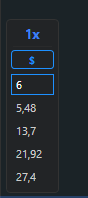
Section titled “Where it is”In the bottom left corner of every order book panel: five buttons and a unit switch button.
How to use
Section titled “How to use”- Selection. Click a button or press 1–5 with the cursor over the order book. Keys 1–5 are reserved for volume and cannot be reassigned.
- Units. The $ / LOT button switches the volume between a dollar amount and a number of coins. Each mode has its own set of five values. Dollars by default.
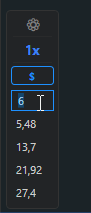
- Your own value. A double click on a button opens an input field right in it: Enter saves, Esc cancels. The value is rounded to the instrument’s lot step.
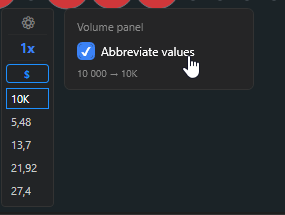
- Short labels. In the volume panel settings you can enable a short label format: 12,500 is shown as 12.5K, 1,250,000 as 1.25M. This does not affect the order itself.
Where the values come from
Section titled “Where the values come from”- Your manual values for the instrument, if you entered them.
- The preset of the exchange and market pair from Settings → Presets, if it was applied with the “Apply” button.
- An automatic ladder from the exchange’s minimum volume for the instrument: minimum, ×2, ×5, ×8, ×10. For example, with a minimum of $7.83: 7.83, 15.66, 39.15, 62.64, 78.3.
How the volume gets into the order
Section titled “How the volume gets into the order”In dollar mode the amount is divided by the order price and rounded down to the lot step. So the actual volume in coins may be slightly less than the entered amount.
The x1 label next to the order book refers to order book compression, the price step, not the volume.
Messages
Section titled “Messages”- “Minimum volume: … in lots” / “… in $”: the entered value is below the exchange minimum.
- “Invalid volume value”: the field does not contain a number.
- “The selected volume is too small for this instrument” and “Order volume is below the minimum (NOTIONAL)”: the exchange rejected the order. Increase the volume.
- With a zero volume the order is silently not sent.