
How to make your first trade
An end-to-end scenario of the first trade in SmartDOM: from choosing a volume to closing the position. Everything happens in the order book, there is no separate trading window.
Before you start
Section titled “Before you start”- The exchange is connected and the connection card shows the status Connected: Connecting exchanges.
- An instrument is open in the order book: Quick start, step 4.
- You know the buy, sell and close-position keys: Settings → Hotkeys.
SmartDOM trades real money, there are no confirmations before an order. Choose the minimum volume for your first trade. Binance has a demo mode on its test network: Binance.
Step by step
Section titled “Step by step”1. Choose a volume. In the bottom left corner of the order book there are five volume buttons. Click one of them or press 1–5. The $ button switches the volume between dollars and coins. Details: Working volumes.
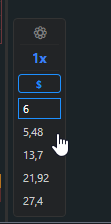
2. Place an order. A left click on a price in the order book places a limit buy order at that price, a right click a sell order. Buy or sell at market: keys Q and W, with the cursor over the order book.
3. Watch the order. A limit order appears in the order book as a badge with the volume at its price. The badge can be dragged to another price, the cross on it cancels the order.
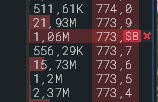
4. Position. After the fill the order book highlights the zone from the entry price to the current price, green in profit and red in loss, and the Positions panel shows a row with the entry price, volume and PnL.
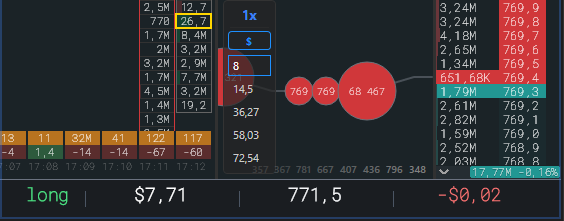
5. Close the position. Hold Alt and click a price: the terminal places a limit order for the whole position volume in the closing direction. Or assign the “Close position” key in the settings: it closes at market with confirmation.
If something went wrong
Section titled “If something went wrong”- The order did not appear and nothing was said. The volume is zero: choose a volume button.
- “The selected volume is too small for this instrument” / “Order volume is below the minimum (NOTIONAL)”. The exchange rejected the order because of the volume. Increase the volume.
- “Connection is unstable. Order book data is outdated, the order was not placed.” The data stream was interrupted, wait for the reconnection.
- “Trading is locked. Action not performed.” The trading lock is on: Cancelling orders, the section about the lock.