
Order book
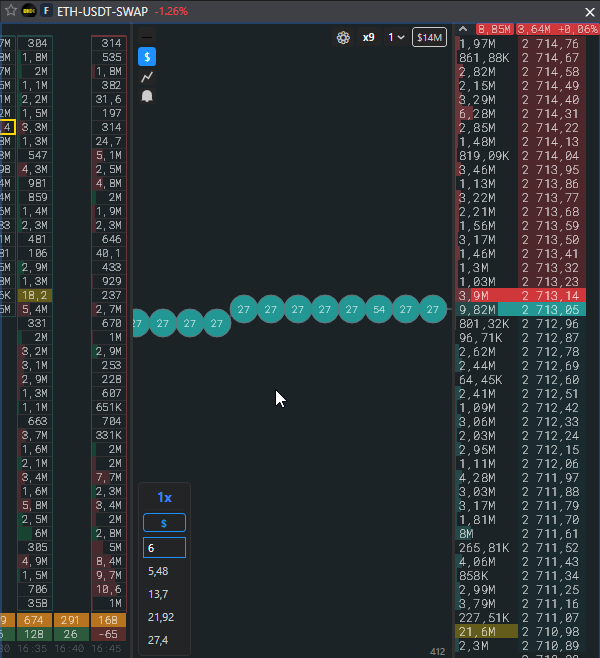
The instrument panel is three zones in one window: clusters on the left, the tick tape in the middle and the order book on the right. All trading control is concentrated here.
| Zone | What it shows | Details |
|---|---|---|
| Clusters | A “price × time” grid with the traded volume. A double click expands the clusters to full width and hides the tick tape, another one brings it back. | Settings → Clusters |
| Tick tape | The stream of exchange trades at their prices, new ones on the right. | Tick tape |
| Order book | Orders at every price, trading by click, order badges, TP/SL lines, position zone. | Order book display settings |
Zone borders are dragged with splitters, the width is remembered for the tab.
Panel elements
Section titled “Panel elements”- Top left: ping, the $ button, the chart button, the signal level bell. Top right: trading lock, panel settings gear, compression x1, density.
- Bottom left: the volume selector, five buttons and the $/LOT switch: Working volumes.
- The PnL panel shows the position, average price and result. A right click on it opens the panel settings, like the gear.
Trading from the order book
Section titled “Trading from the order book”A click on a price places a limit order, keys place market orders, holding Z, V, Alt enables the TP/SL, pending order and close position modes. All of this is described in the “Trading” section: Market and limit orders, Take Profit / Stop Loss, Cancelling orders.
Panel settings
Section titled “Panel settings”The gear opens “Instrument settings” with the Order book, Clusters and Tick tape tabs. Personal values are marked with a dot and do not follow the common ones: Order book display settings.