
OKX
How to connect a OKX account to SmartDOM with an API key and what the terminal can do with this connection.
What the connection gives you
Section titled “What the connection gives you”Once connected, SmartDOM shows the account’s balances and positions, keeps the list of orders and lets you trade from the order book. Without a connection the exchange is available for viewing quotes only.
| Parameter | Value |
|---|---|
| Markets for trading | Spot and Futures (USDT-swap) |
| Passphrase when connecting | Required |
| Demo trading (testnet) | No |
Where it is in SmartDOM
Section titled “Where it is in SmartDOM”Settings → Connection → “+ Add connection”.
Step by step
Section titled “Step by step”- Create an API key in your OKX account. Which permissions to enable: Creating API keys and required permissions. When creating the key OKX asks you to make up a Passphrase: remember it, you will need it in the terminal.
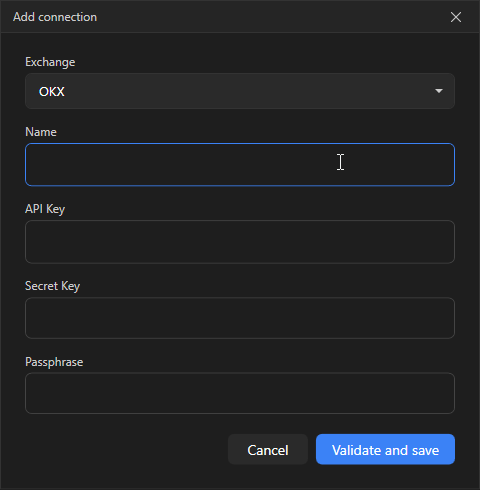
- In SmartDOM open Settings → Connection and click + Add connection.
- In the Exchange field select OKX.
- In the Name field enter any clear name, for example “OKX main”. It is used to tell connections apart.
- Paste the API Key and Secret Key.
- The Passphrase field appears automatically: OKX requires it when creating a key. Enter the same phrase you set on the exchange.
- Click Verify and save. The terminal contacts the exchange and makes sure the keys work. While checking, “Verifying keys…” is shown.
- The new connection appears in the list with the status Disconnected. Click Connect to start trading.
- Balances and positions come from the OKX unified account, so the connection card says “Unified Account”. You can trade both spot and futures.
- The passphrase is checked by the exchange together with the key. If it is wrong, OKX returns a signature error and the terminal shows “Invalid API keys” or “Invalid passphrase”.
Common errors
Section titled “Common errors”-
“Invalid API keys”: the key was copied incompletely, deleted on the exchange or created for another account. Create a new key and paste it again.
-
“Local clock is out of sync with the exchange (>30 s)”: enable automatic time synchronisation in Windows.
-
“IP address is not in the API key whitelist”: the key has an IP restriction on the exchange and your address is not on the list.
-
“The API key has insufficient permissions. Enable Read and Trade.”: account reading and trading permissions were not ticked when creating the key.
-
Signature error with correct keys. Most often an extra space or line break got into the field when copying. The terminal trims spaces at the edges, but make sure only the key was copied.
The full list of messages and what to do about them: Common connection errors.