
Download and installation
How to get the SmartDOM installer and install the terminal.
Download
Section titled “Download”The installer is available in three ways:
- The “Software” section of your account. Sign in to your personal account, open the Software section and click Download on the “SmartDOM” card.
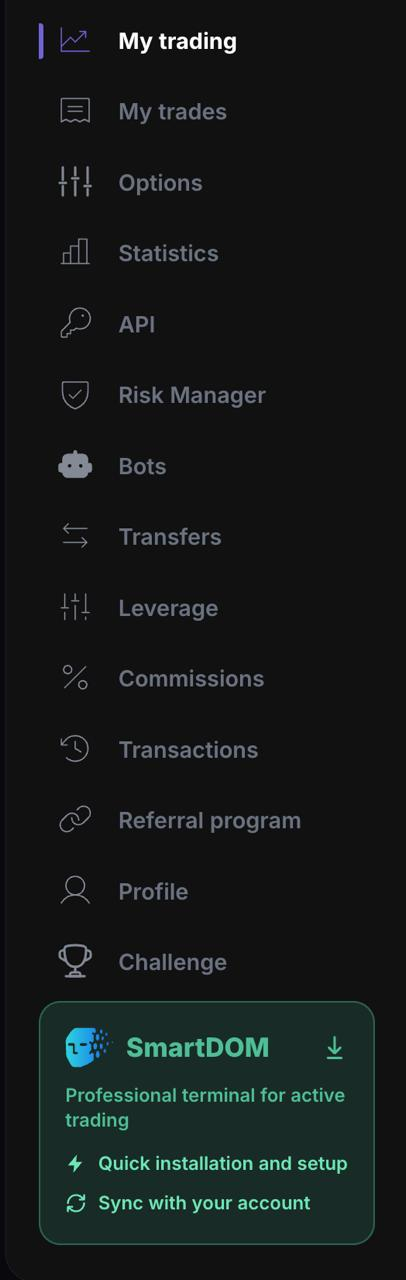
- Sidebar of the personal account. At the bottom of the left menu there is a SmartDOM block with a download icon. Clicking it downloads the installer.
- Direct link: https://api.tsystem.pro/updates/SmartDOM-Setup.exe. It always points to the latest version.
The installer file is called SmartDOM-Setup.exe. Download it only from these addresses.
Installation
Section titled “Installation”- Run
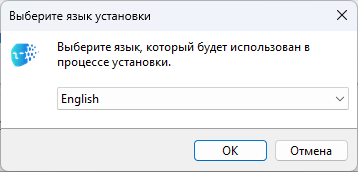
SmartDOM-Setup.exe. - Choose the installer language: Russian or English. The same language becomes the terminal language; you can change it later in Settings → General.
- Change the installation folder if needed and tick “Create a desktop shortcut”.
- Wait for it to finish and leave “Launch SmartDOM” ticked so the terminal starts right away.
Shortcuts appear in the Start menu in the SmartDOM folder and, if ticked, on the desktop.
Updating
Section titled “Updating”A new version installs over the old one with the same installer or from the terminal: Settings → Updates. Settings, themes, window layout and exchange connections are kept when updating.
Uninstalling
Section titled “Uninstalling”“Start → SmartDOM → Uninstall SmartDOM” or via “Windows Settings → Apps”. When uninstalling, the terminal erases the saved exchange keys from the computer. The keys themselves remain on the exchanges; after reinstalling you will need to enter them again.