
Screen recording
The Screen recording tab: what to record, video quality, sound, folder and file limits.
Where it is in SmartDOM
Section titled “Where it is in SmartDOM”Settings → Screen recording. The ? icon in the top right corner of the tab opens this article.
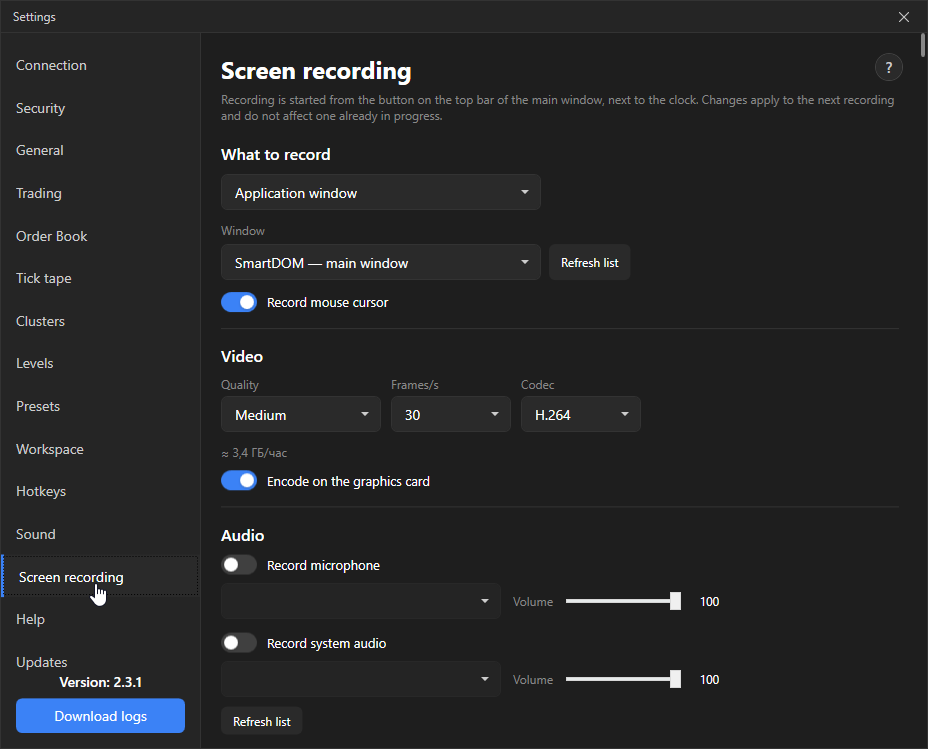
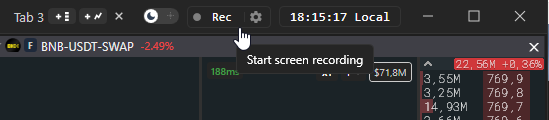
Recording is started with the button on the top bar of the main window next to the clock. Settings changes apply to the next recording and do not affect the one in progress.
What to record
Section titled “What to record”| Setting | What it does | Default |
|---|---|---|
| Source | Application window, Whole desktop, Selected monitors or Screen area. | Application window |
| Window | For the “Application window” source: which terminal window to record. The “Refresh list” button re-reads windows, monitors and audio devices. | main window |
| Monitors | For “Selected monitors”: the ticked monitors are combined into one frame side by side. | |
| Area | For “Screen area”: monitor, the “Select area” button with the mouse (Esc cancels) or the X, Y, Width, Height fields. | 1280 × 720 |
| Record mouse cursor | On |
| Setting | What it does | Default |
|---|---|---|
| Quality | Low, Medium, High or Custom bitrate. | Medium |
| Frames/s | 15, 24, 30 or 60. | 30 |
| Codec | H.264 or H.265. | H.264 |
| Bitrate, kbit/s | Only with “Custom bitrate”, 500–80000. | 8000 |
| Encode with the graphics card | Turn off if the recording has artefacts or does not start: encoding moves to the CPU, slower but more reliable. | On |
Below the settings an estimate of the file size per hour of recording is shown.
| Setting | What it does | Default |
|---|---|---|
| Record microphone | Device selection and volume 0–100. | On, 100 |
| Record system sound | Application and system sound: screener signals, notifications, browser audio. Output device selection and volume. | On, 100 |
| Setting | What it does | Default |
|---|---|---|
| Recordings folder | “Browse”, “Open”, “Default” buttons. | %LOCALAPPDATA%\\TradeSystem\\Recordings |
| Duration limit | No limit, 15 min, 30 min, 1 h, 2 h, 4 h. | No limit |
| File size limit | No limit, 1, 2, 5 or 10 GB. | No limit |
Regardless of the limits, recording stops when less than 1 GB of free disk space remains: a full disk breaks not only the recording but the terminal itself. When stopping, the terminal reports the reason and saves the file.
Hotkeys
Section titled “Hotkeys”Start, pause/resume and stop recording. Not assigned by default. The same bindings are edited on the Hotkeys → Workspace tab.