
Take Profit / Stop Loss
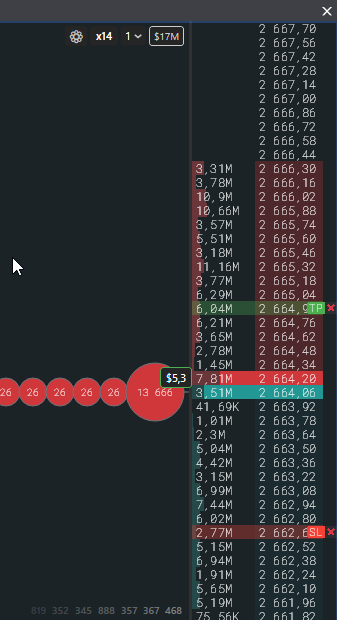
Take Profit and Stop Loss in SmartDOM are placed by clicking the order book for the whole volume of the open position and are shown as lines with TP and SL badges.
How to place
Section titled “How to place”- Open a position. Without a position the mode does not turn on, “You are not in a position.” appears.
- Hold Z. The row under the cursor is highlighted green or red with a TP or SL mark.
- Click the price you want.
What you get is defined by the price position relative to the current market price and the position side:
| Position | Click above the current price | Click below the current price |
|---|---|---|
| Long | Take Profit | Stop Loss |
| Short | Stop Loss | Take Profit |
Exactly at the current price is not allowed. You can hold both a TP and an SL at the same time.
Change and remove
Section titled “Change and remove”- Drag the TP or SL badge to another price. If that row has badges of regular orders, dragging is unavailable. On Bitget dragging is not supported: remove the order and place it again with Z.
- A repeated click in Z mode moves the existing order to the new price.
- The cross on the badge removes the order.
How TP and SL behave
Section titled “How TP and SL behave”- The volume always equals the whole position volume. When adding or partially closing it adjusts automatically. On MEXC the adjustment takes up to a second: the exchange requires the order to be recreated.
- When one order fires, the other is removed.
- Closing the position to zero removes both.
- A stop or take placed on the exchange website is shown by the terminal as a line in the order book.
- Any price change is a cancellation of the old order and placement of a new one; the exchange history will show two orders.
Auto Take Profit and Stop Loss
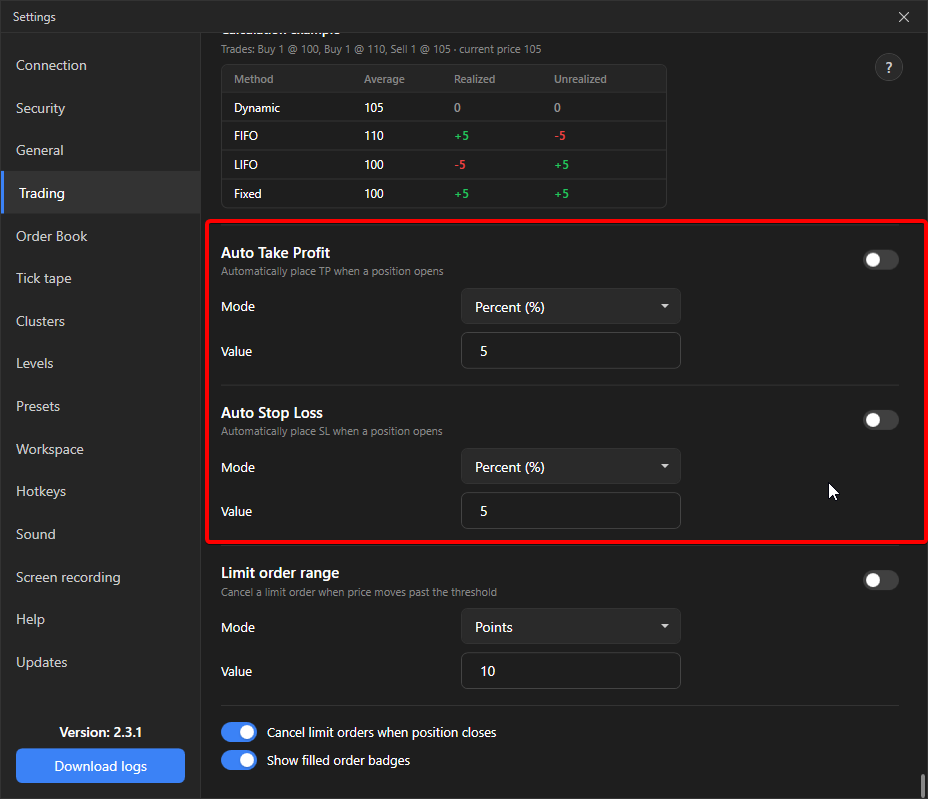
Section titled “Auto Take Profit and Stop Loss”In Settings → Trading you can enable automatic placement of TP and SL when a position opens, at a set distance from the entry price in percent or points. They are placed once when a new position opens and only if there is no TP or SL yet. They are not moved when adding. The value 0 turns it off.
Messages
Section titled “Messages”- “You are not in a position.”: Z mode without an open position.
- “TP/SL error: …”: the exchange rejected the conditional order, the line is removed. The text after the colon comes from the exchange.
- “Trading is locked. Action not performed.”: the trading lock is on.
Where exactly the stop fires, in the terminal or on the exchange, depends on the execution mode: TP/SL execution mode. A local stop works only while the terminal is running and connected.