First launch
On the first launch SmartDOM asks you to activate a license and create a PIN code, then the main window opens. The whole thing takes a couple of minutes.
Step 1. License activation
Section titled “Step 1. License activation”The “License activation” window opens with three tabs. The device ID is shown at the bottom: the license is bound to this computer.
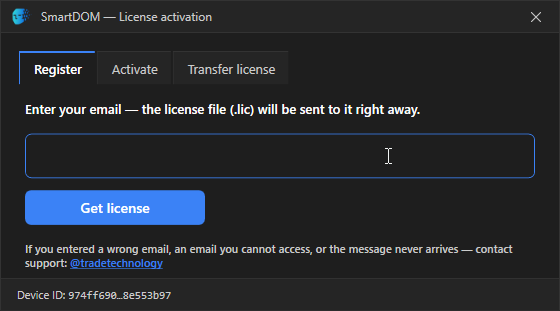
- On the Registration tab enter your email and click Get license. The terminal asks you to confirm the address: check it, the email goes exactly there.
- An email with the
.liclicense file arrives immediately. Save the file to your computer. - Switch to the Activation tab and drag the file into the window or click Choose file….
- After the message “License activated” the terminal continues starting up.
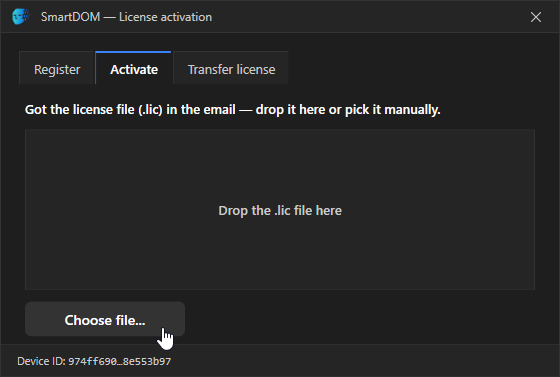
If the email has not arrived, check the Spam folder. If you entered a wrong address or have no access to it, contact support: How to contact technical support.
Transferring the license to another computer
Section titled “Transferring the license to another computer”A license works on one device. If you reinstalled Windows, replaced the motherboard or moved to another PC, enter the license email on the License transfer tab and click Request transfer. A confirmation email arrives, and after you confirm, a second email with a new .lic file. The old license stops working. A transfer is possible no more than once every 30 days.
Activation messages
Section titled “Activation messages”| Message | What to do |
|---|---|
| A license for this email has already been issued. Use “License transfer” if you changed the device. | This email already has a license. For a new computer do a transfer. |
| This license was issued for another device. | The file is from another computer. Do a transfer. |
| Your license has been transferred to another device and no longer works on this computer. | You activated it on another PC. Transfer it back if 30 days have passed, or register a new one with a different email. |
| The file is not a valid license / The license signature is invalid. | The file was damaged when saving. Download it from the email again. |
| The license has been revoked. | Contact support. |
Step 2. PIN code
Section titled “Step 2. PIN code”The terminal asks you to create a PIN of at least 4 digits and repeat it. The PIN protects the exchange API keys you will later save in the terminal and is requested at every launch.
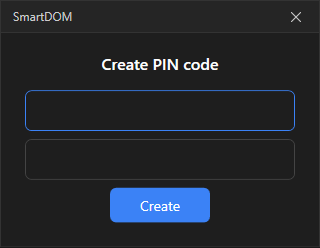
A forgotten PIN cannot be recovered. The “Forgot PIN” button and three wrong entries in a row reset the PIN together with all saved exchange keys: you will have to enter them again. Details: Settings → Security.
Step 3. Main window
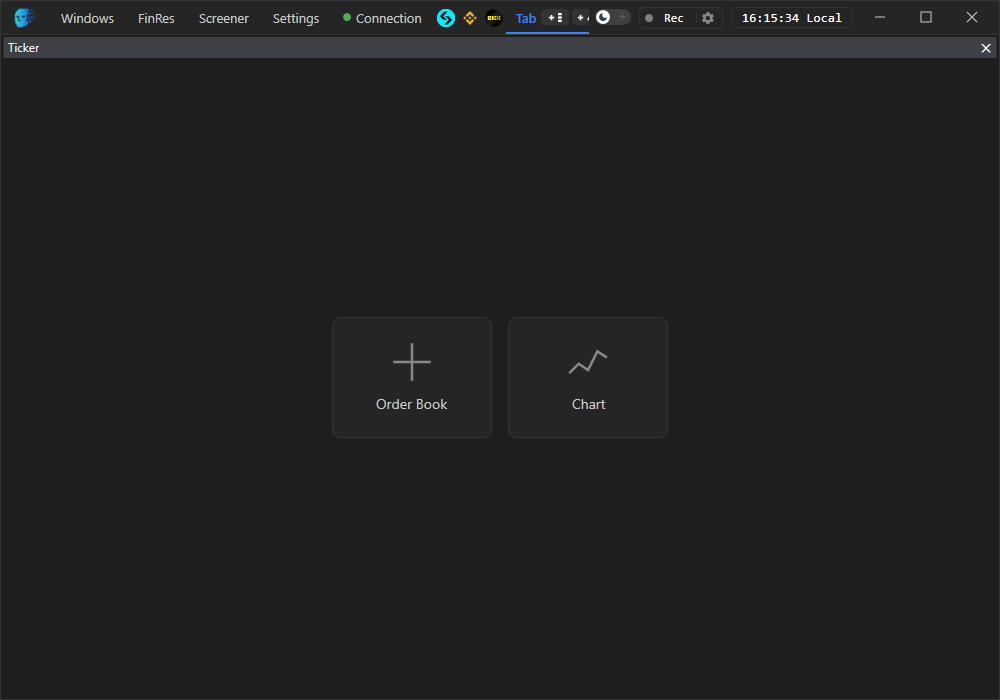
Section titled “Step 3. Main window”After the PIN the main window opens with an empty workspace. The top bar: buttons to open an order book, a chart and tabs, the orders, positions, history and financial result panels, screeners, listings, settings and connection. Next in order: connect an exchange and open your first instrument.