
Hotkeys
The Hotkeys tab: key bindings for the workspace, chart, order book and trading.
Where it is in SmartDOM
Section titled “Where it is in SmartDOM”Settings → Hotkeys. The ? icon in the top right corner of the tab opens this article.
How to assign a key
Section titled “How to assign a key”- Choose a sub-tab: Workspace, Chart, Order book or Trading.
- Click the key field next to the action and press the key you want.
- The + button adds a modifier (Ctrl, Shift or Alt), ✕ removes it.
- If the combination is already taken, the terminal shows “This combination is already used for: …” and offers to reassign it.
Workspace
Section titled “Workspace”| Action | Note | Default |
|---|---|---|
| Open chart | F8 | |
| Next tab | Tab | |
| Create tab | not assigned | |
| Start screen recording | The same three bindings are duplicated on the Screen recording tab. | not assigned |
| Pause / resume recording | not assigned | |
| Stop screen recording | not assigned |
| Action | Note | Default |
|---|---|---|
| Full-screen chart | Exit with Esc. | F |
| Scroll to the current price | → | |
| Scroll to the start of history | ← | |
| Show trades on the chart | Works when the mouse is over the chart. | E |
| Drawing tools: Line, Rectangle, Ray, Horizontal line, Horizontal ray, Ruler, Hide side panel | not assigned | |
| Delete selected shape | Delete | |
| Undo last drawing | Ctrl+Z | |
| Delete all shapes | Ctrl+Delete |
Order book
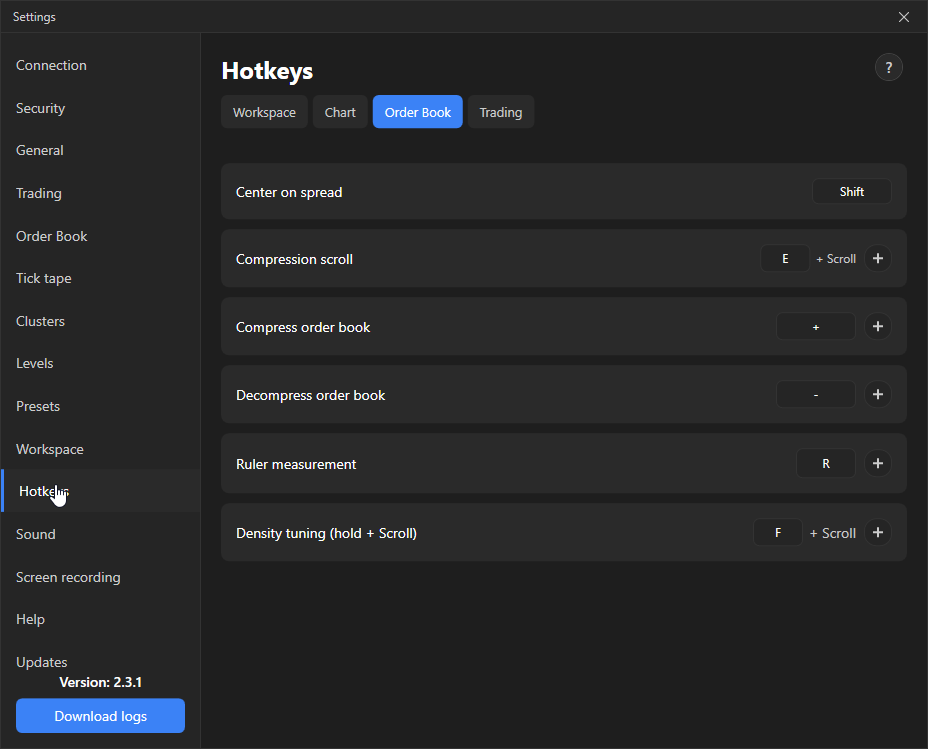
Section titled “Order book”| Action | Note | Default |
|---|---|---|
| Center the order book | Spread in the middle. | Shift |
| Compression by scroll | Activates the compression step field. Works when the mouse is over the order book. | E |
| Compress the order book | + | |
| Decompress the order book | − | |
| Measuring ruler | Hold the key, a click sets the anchor, dragging measures. | R |
| Density adjustment (hold + Scroll) | Hold the key and turn the wheel: the density reference changes by ±5% per step. | F |
Trading
Section titled “Trading”Trading actions have their own “enabled” switch, and three dangerous ones also have an “Ask for confirmation” checkbox.
| Action | Note | Default |
|---|---|---|
| Cancel all limit orders | For the current instrument. Confirmation is off by default. | Space |
| Buy at market / Sell at market | Q / W | |
| Buy at best bid / Sell at best ask | Limit order at the best price. | A / S |
| Buy in front of best bid / Sell in front of best ask | Limit order one tick closer to the spread. | not assigned |
| Close position | At market in the order book under the mouse. Confirmation is on by default. | not assigned |
| Close all positions | In all panels, tabs and workspaces. Confirmation is on by default. | not assigned |
| SL/TP mode | Hold and click the order book to place a stop or take. | Z |
| Pending order mode | V | |
| Price level mode / Remove all levels | L / not assigned | |
| Signal level mode / Remove all signal levels | K / not assigned | |
| Close position with a limit order by click | Always available, cannot be disabled. | Alt |
| Trading lock | Under the lock nothing trading-related works. The lock is one for the whole application and survives a restart. | not assigned |
Trading keys act without further questions unless confirmation is enabled. Before your first real trade, check which keys are assigned to buy, sell and close.