
Updates
The Updates tab: checking for a new version, installing it and rolling back to the previous one.
Where it is in SmartDOM
Section titled “Where it is in SmartDOM”Settings → Updates. The ? icon in the top right corner of the tab opens this article.
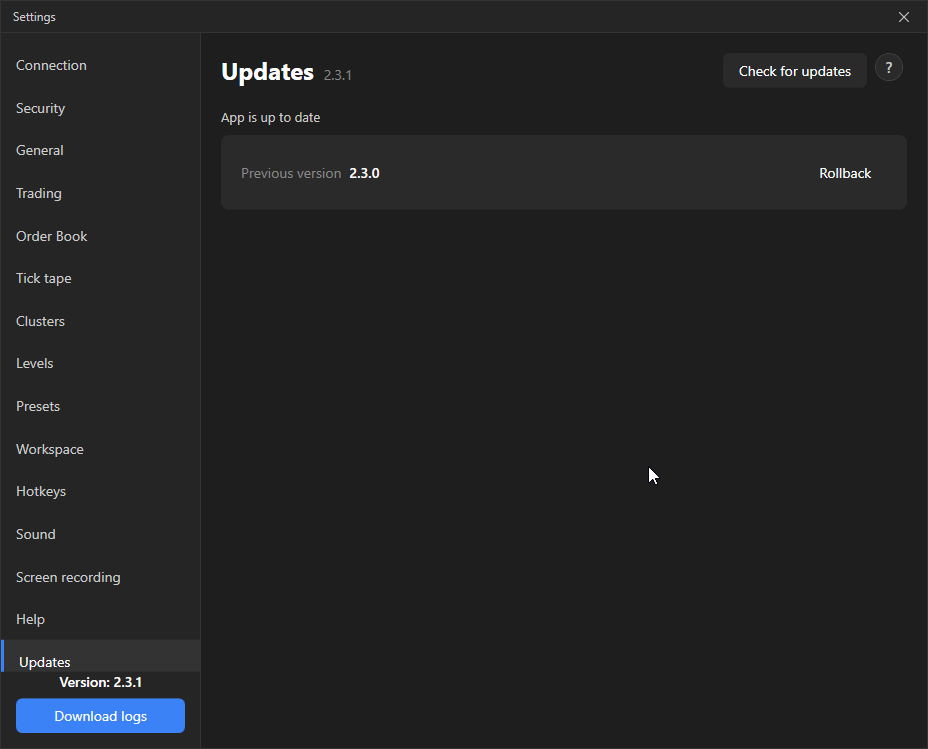
What is on the tab
Section titled “What is on the tab”- The installed version is shown next to the heading.
- Check for updates: queries the server. Result: “Version is up to date”, “Update available” with the version number, or “Could not check for updates”.
- The Update available block: the Update button and an expandable What’s new list with the version’s changes.
- During installation progress is shown: “Downloading…”, then “Launching installer…”. The terminal closes and the installer updates it.
- The Previous version block with the Roll back button appears if the previous build is kept on the computer.
Common errors
Section titled “Common errors”- “Could not check for updates”: no access to the update server. Check the internet and try again later.
- “Could not download the installer. Try again.”
- “Could not launch the installer automatically. File saved: …”: run the file at the given path manually.
Before updating, close positions or make sure TP/SL are placed in exchange mode: while the terminal is being reinstalled, local TP/SL do not work.