Order book display settings
What the order book panel consists of, what its elements mean and where which settings are: personal for the panel or common for all.
Order book row
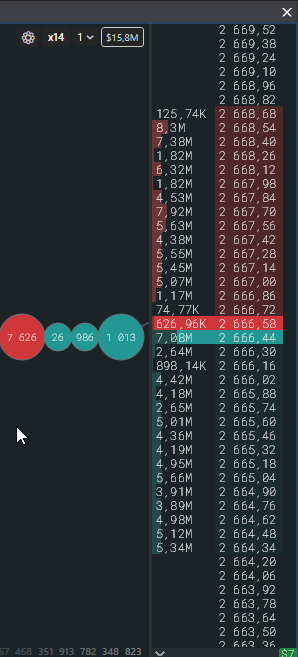
Section titled “Order book row”- Two columns: the order volume at the level on the left, the price on the right. The best bid and ask are highlighted in colour.
- Fill bar in the volume cell shows how large the level is relative to the “Full-scale volume”. Details: Densities.
- Large volume highlighting. Levels whose volume is above the “Large volume 1” and “Large volume 2” thresholds are filled with colour. The thresholds are set in the panel settings, in lots and in dollars; threshold 2 must be at least twice threshold 1. With “Auto-fill” on, the terminal calculates them from the order book itself. “Highlight the whole row” extends the fill to the price cell.
- Position zone. With an open position the rows from the entry price to the current price are coloured green in profit and red in loss.
- Grid between cells and round level grid: a horizontal line on every 10th, 100th or 1000th row, enabled in Settings → Order book.
Elements around the order book
Section titled “Elements around the order book”| Element | What it does | Where |
|---|---|---|
| Ping | Delay from the exchange to the screen, updated once a second. Green up to 400 ms, orange up to 800, red above. A dash while there is no data. | top left |
| $ | Show volumes in dollars instead of coins. The button is blue when the mode is on. | top left |
| Chart | Open the instrument’s chart. | top left |
| Bell | History of signal level triggers, a red counter of unread ones. | top left |
| Lock | Visible only when the trading lock is on: Cancelling orders. | top right |
| ⚙ | Instrument settings: personal settings of this panel. | top right |
| x1 and chevron | Order book compression, see below. | top right |
| Density | The volume from which the bar fill is measured. Display only, changed in the instrument settings or by holding F. | top right |
The buttons on the left and the gear appear when you hover the mouse over the panel. Ping, lock, compression and density are always visible.
Order book compression
Section titled “Order book compression”The x1 badge shows how many times the price step is enlarged: at x10 ten levels are folded into one row with the sum of volumes.
- A left click on the badge increases compression by one step, a right click decreases it. The + and − keys do the same.
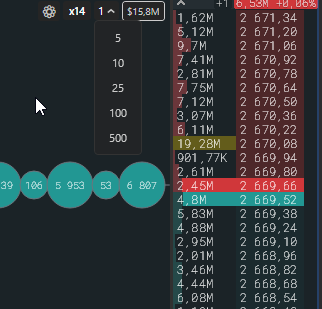
- The chevron next to it opens a list of steps: 5, 10, 25, 100, 500. The selected number is the step by which compression changes per click, not the compression itself. A double click on an item lets you enter your own step. Maximum compression 1000.
- Hold E and turn the wheel: up compresses, down decompresses.
Personal and common settings
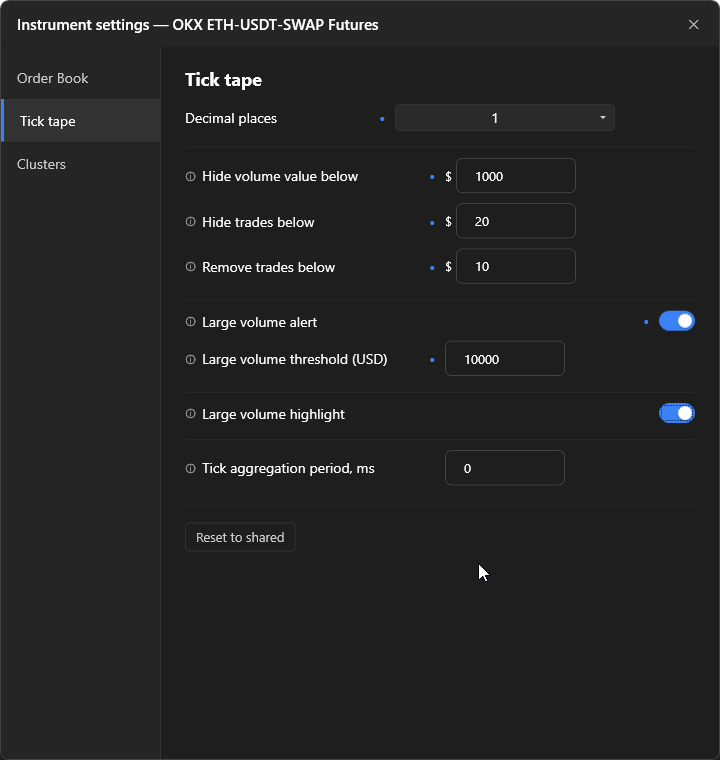
Section titled “Personal and common settings”The gear opens the “Instrument settings” window with the Order book, Clusters and Tape tabs. Everything you change there applies only to this panel and is marked with a dot ●: the panel stops following the common settings for that parameter. The Reset to common button removes the tab’s personal values.
Common values are set in Settings → Order book and Settings → Tick tape. The Apply to all button there switches all panels in all windows to the common settings and erases the personal ones; the action is irreversible.
Not part of the common settings and always personal: “Full-scale volume”, “Auto-fill” and the large volume thresholds, they depend on the instrument.
Font and paddings
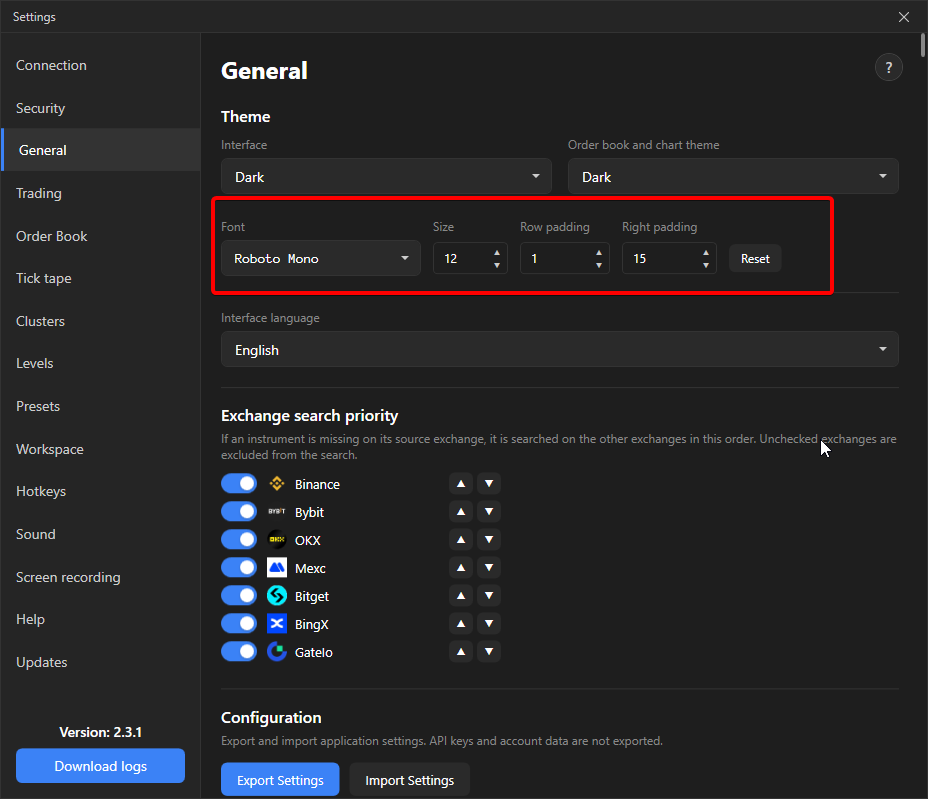
Section titled “Font and paddings”Typeface, size, row padding and the right padding for order badges are set in Settings → General, decimal places for volumes in the gear and the common settings.