
Market and limit orders
Three order types in SmartDOM: market, limit and pending. All are placed from the order book with a click or a key, without dialogs.
Order types
Section titled “Order types”| Type | How to place | Note |
|---|---|---|
| Market | Q buy, W sell. Fills immediately at current prices. | cursor over the order book |
| Limit at the clicked price | Left click on a price: buy, right click: sell. The order is placed exactly at the row price. If the clicked price crosses the spread, the order fills immediately. | |
| Limit at the best price | A buy at the best bid, S sell at the best ask. The “in front of the best price” keys place the order one step closer to the spread; they are not assigned by default. | |
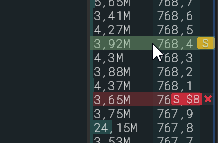
| Pending | Hold V and click a price. The order fires as a market order when the price reaches that level. | above the current price: Buy Stop, below: Sell Stop |
Pending orders in detail
Section titled “Pending orders in detail”- The direction is defined by the price position, not the mouse button: a click above the market places a buy stop, below the market a sell stop.
- The volume is taken from the volume selector, no position is needed.
- While V is held, the row under the cursor is highlighted orange with an S mark.
- A pending order is always stored on the exchange and fires even when the terminal is closed. In the Orders table it is shown with the type “Pending”.
Order badges in the order book
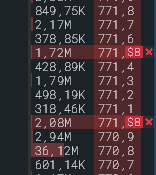
Section titled “Order badges in the order book”- Every active order is shown as a badge with the volume at its price.
- Drag the badge to another row to change the price. The terminal cancels the order and places a new one. If the new volume for that price is below the minimum, “Cannot move: volume is too small for the new price” appears.
- The cross on the badge cancels the order. Pressed and released without moving: nothing happens.
The Orders table
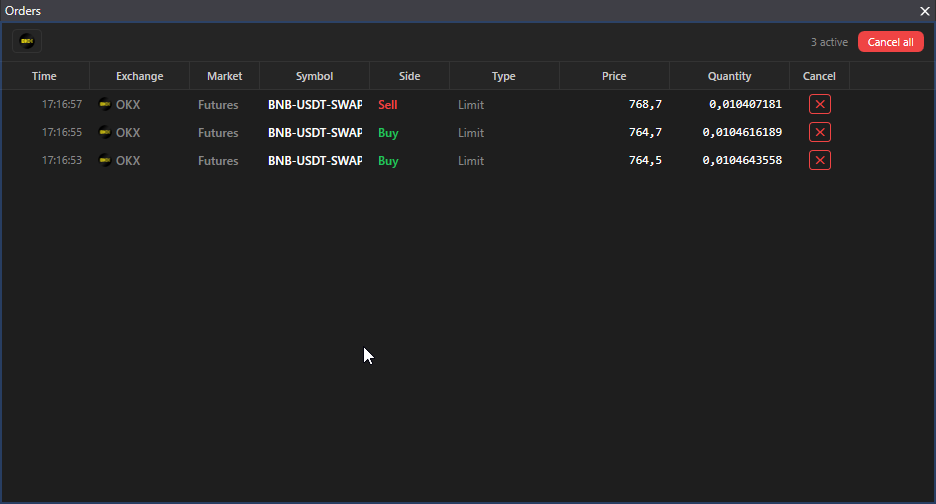
Section titled “The Orders table”The Orders panel on the top bar shows all active orders across all exchanges: time, exchange, market, ticker, side, type (Limit, Stop Loss, Take Profit, Pending), price, volume. A double click on a row opens the instrument’s order book. Details: Orders.
Protection against accidental actions
Section titled “Protection against accidental actions”- A repeated click within 0.3 seconds is ignored.
- The V, Z and Alt modes are enabled only by holding the key, a short press does nothing.
- When the data stream is interrupted, orders are not sent: “Connection is unstable. Order book data is outdated, the order was not placed.”
- The trading lock blocks all trading actions: Cancelling orders.
