
Chart
The chart opens together with the order book or as a separate panel and updates on every trade.
Basics
Section titled “Basics”- Timeframes: 1s, 5s, 15s, 30s, 1m, 3m, 5m, 15m, 30m, 1h, 2h, 4h, 1D, 1W, 1M.
- Types: candles, bars, line, area, Heikin Ashi.
- The timeframe and type are chosen on the chart toolbar or in the right-click context menu.
- When scrolling left, older candles load automatically. If the chart is scrolled back into history, the return button leads to the current price.
- Timeframe, type, scale, shapes and the trades mode are remembered for each tab.
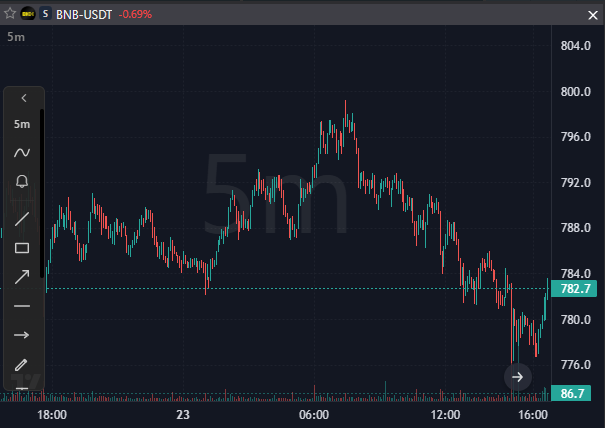
Drawing
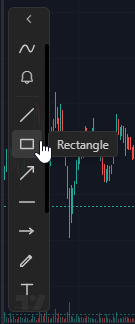
Section titled “Drawing”- Shapes: line, rectangle, ray, horizontal line, horizontal ray, pencil, text. Chosen on the side panel or in the “Shapes” context menu.
- Magnet snaps the cursor to candle prices.
- Shapes drawn on the chart are visible in the order book as well, and vice versa.
- Ruler measures the distance between two points in points, percent and P&L.
- Moving averages: a button on the toolbar; for each line the type, period, source, offset, width, style and timeframe.
- Delete the selected shape with Delete, undo the last drawing with Ctrl+Z, delete all shapes with Ctrl+Delete. Keys for shapes are assigned in Settings → Hotkeys → Chart.
Trades on the chart
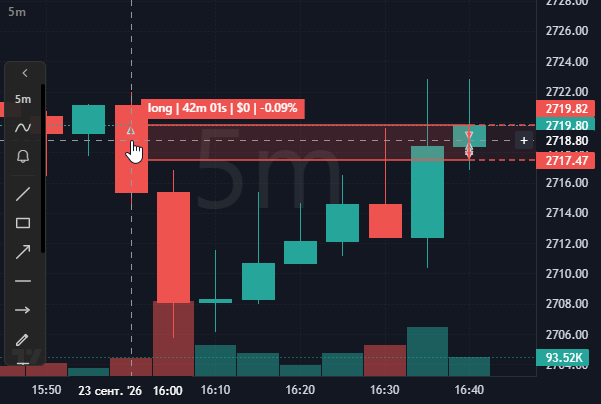
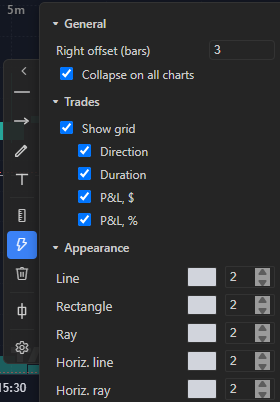
Section titled “Trades on the chart”The E key with the cursor over the chart shows your trades as arrows. A click on an arrow opens the result in percent, the duration and a rectangle from entry to exit. What to write in the label, direction, duration, P&L in dollars and percent, is configured in the chart menu, item “Settings → Trades”.
- Full-screen mode with the F key, exit with Esc.
- The side toolbar can be collapsed, there is a “Collapse on all charts” option.
- The → and ← arrows scroll to the current price and to the start of history.
- In the chart settings: right padding in bars, grid, styles of shapes and signal levels.
- The chart is recoloured together with the terminal theme.