
Measuring and hover ruler
The order book has two rulers: the measuring ruler, which you enable with a key, and the hover ruler, which appears on its own when you point at a price.
Measuring ruler
Section titled “Measuring ruler”- Point the cursor at a price and hold R. The anchor is set on the row under the cursor.
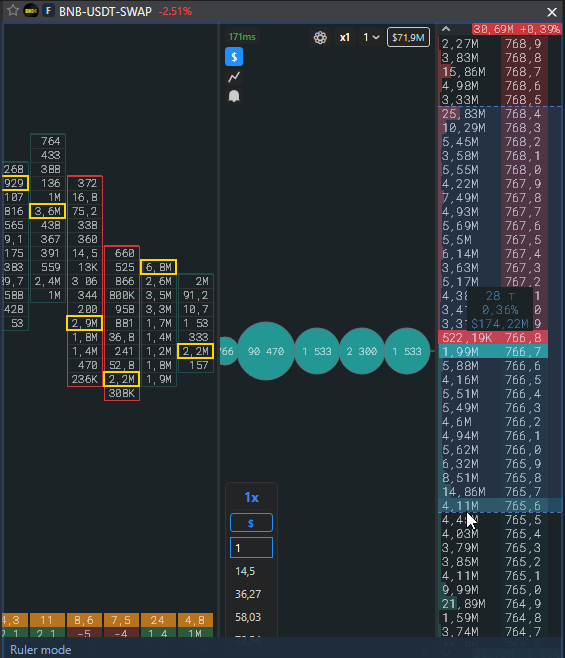
- Move the mouse along the order book: the range from the anchor to the current row is highlighted, the borders are dashed, a badge with the result is in the middle.
- A left click moves the anchor. Orders are not placed in this mode.
- Release the key, the ruler disappears.
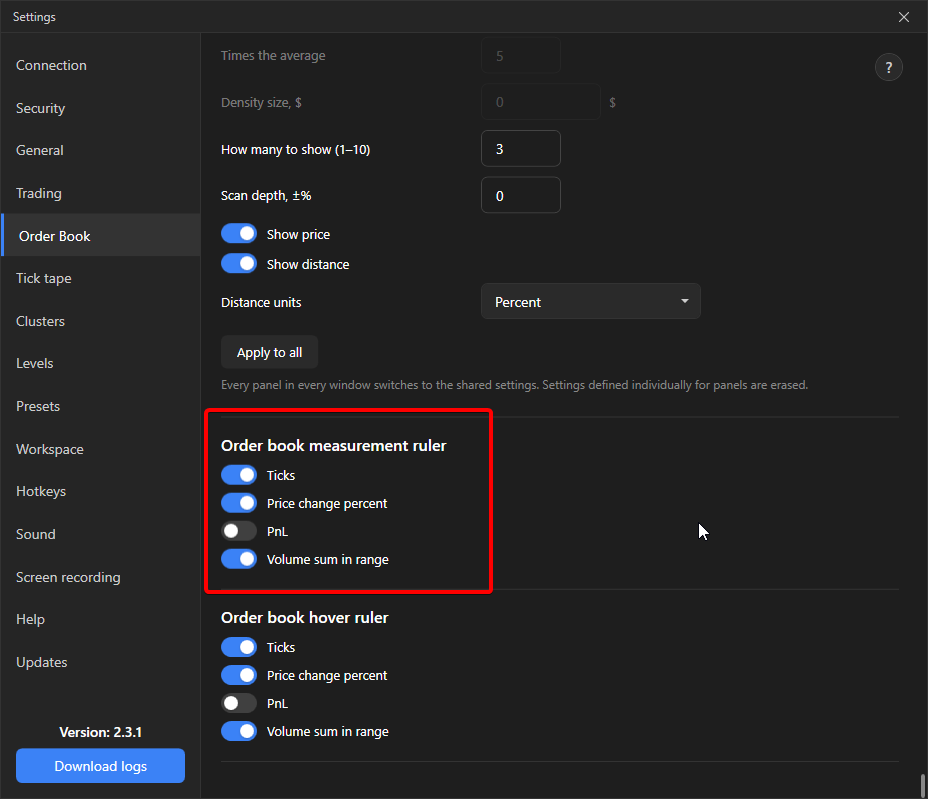
What the badge shows is chosen in Settings → Order book → Order book measuring ruler:
| Value | What it counts | Default |
|---|---|---|
| Ticks | distance in price steps | on |
| Price change percent | from the anchor price | on |
| PnL | the distance multiplied by the volume from the volume selector | off |
| Volume sum in the zone | all exchange orders in the range, in coins or dollars by the $ button | off |
Hover ruler
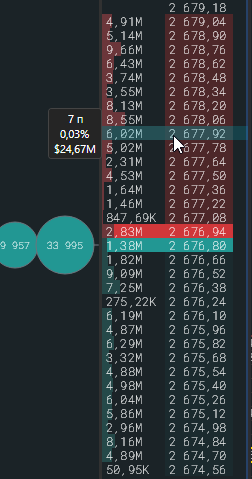
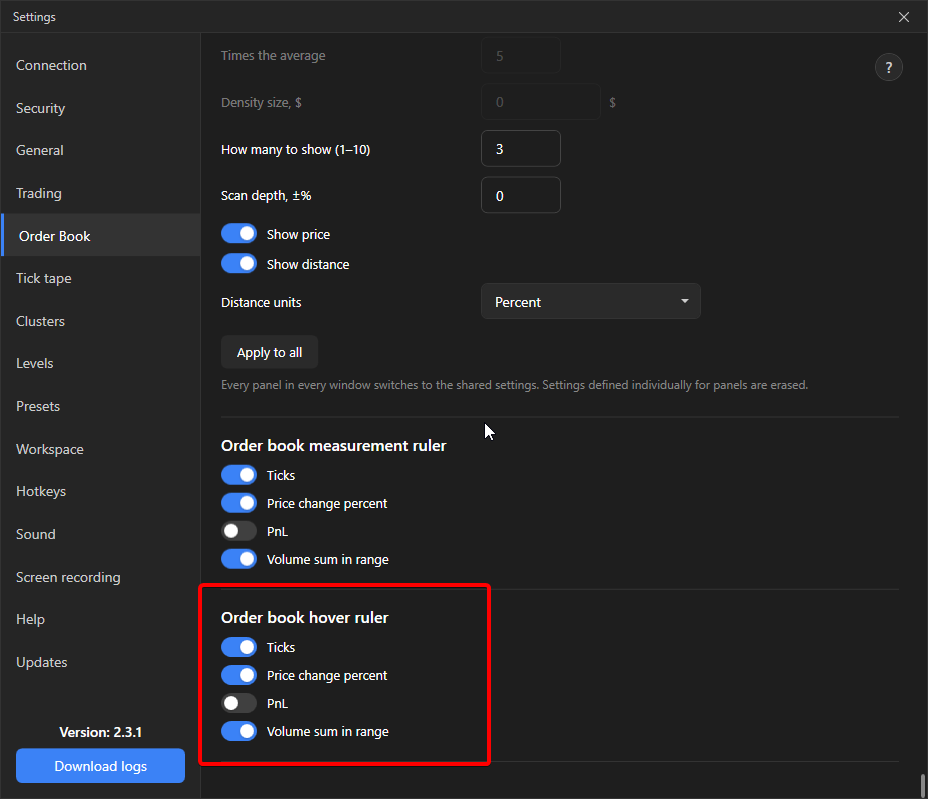
Section titled “Hover ruler”A badge to the left of the order book, right next to it, appears when you point at any price and shows the distance from the spread to that price: for prices above the market from the best ask, for prices below and inside the spread from the best bid. Same contents: ticks, percent, PnL, volume sum between the spread and the price, configured in Settings → Order book → Order book hover ruler. By default only the percent is on.
The hover ruler is hidden in the Z, V, R, L and K modes so as not to cover the preview.
How they differ
Section titled “How they differ”- The measuring ruler counts between two chosen prices, the hover ruler from the spread to the cursor.
- The measuring ruler is drawn inside the order book and requires holding R, the hover ruler appears by itself.