
Connection
The Connection tab stores exchange API keys as named connections: they can be added, verified, enabled and disabled.
Where it is in SmartDOM
Section titled “Where it is in SmartDOM”Settings → Connection. The ? icon in the top right corner of the tab opens this article.
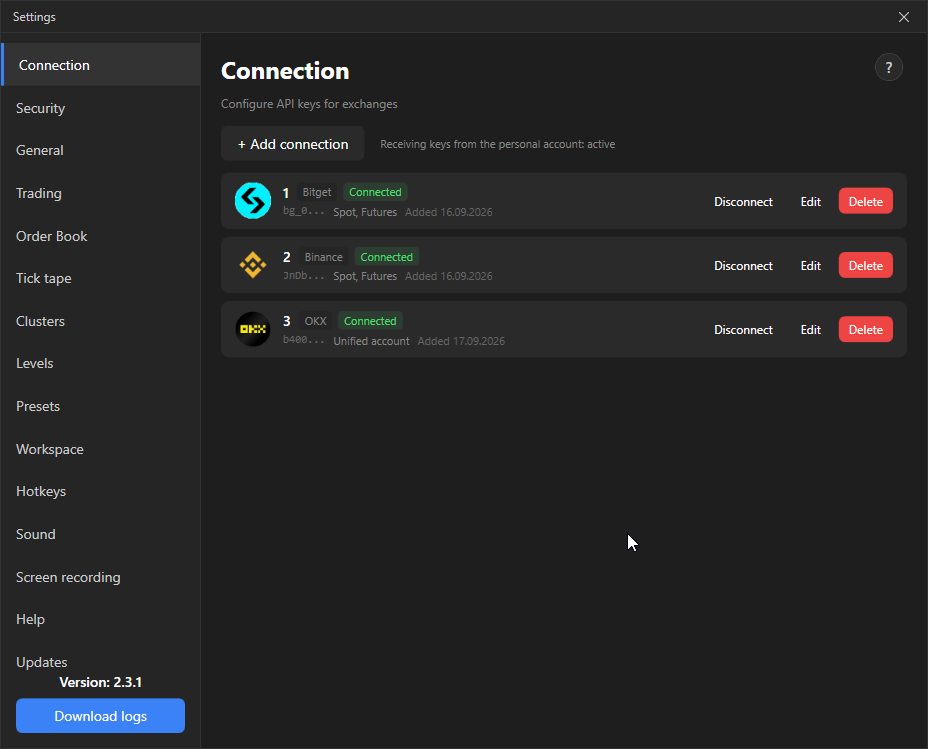
What is on the tab
Section titled “What is on the tab”- + Add connection: opens a dialog where you choose the exchange, set a name and enter the API Key, Secret Key and, for OKX, Bitget and KuCoin, the Passphrase. The Verify and save button contacts the exchange and saves the keys only after a successful check.
- Connection cards. Each shows: name, exchange, the first four characters of the key, the markets that passed verification (Spot, Futures), the date added and the status Connected or Disconnected.
- Buttons on the card: Connect / Disconnect, Edit (opens fields to replace the keys with the same verification), Delete.
- The status line “Receiving keys from the personal account: active” shows that the terminal is ready to accept keys added in the personal account on the website.
- A new connection is created disabled. To trade, click Connect.
- Only one connection per exchange is active. When you enable a second one, the terminal warns you and disables the first.
- Switching a connection blocks the trading area for a few seconds with the message “Switching connection…”: the terminal clears the previous account’s data and loads the new account’s orders.
- Binance has a Demo trading (testnet) mode. Switching between real and demo mode requires restarting the terminal.