
Help
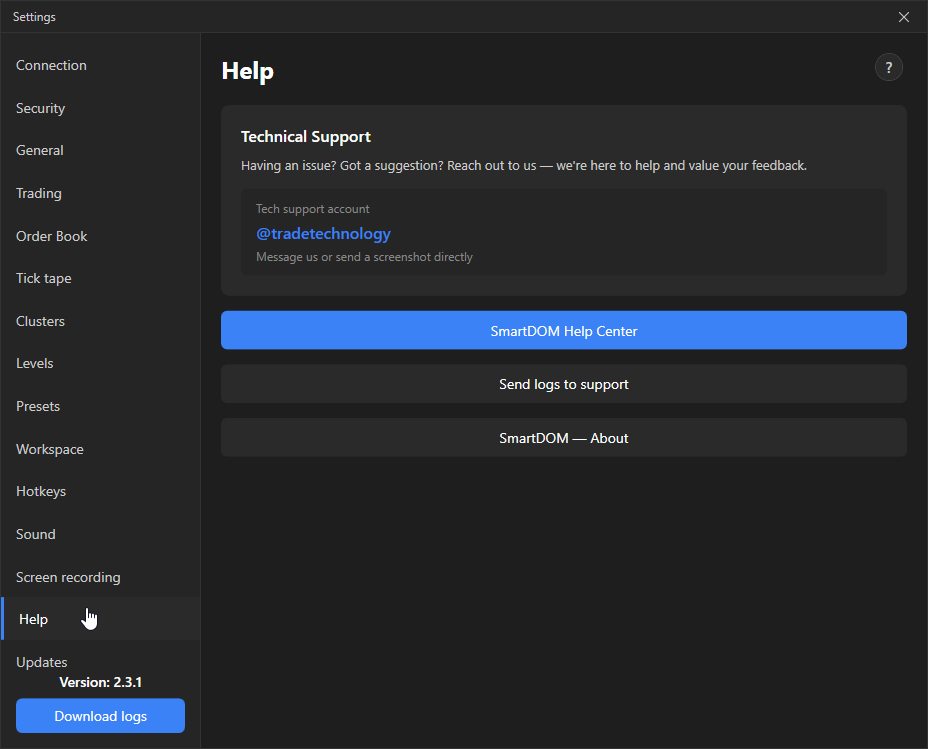
The Help tab gathers everything you need when a problem or question comes up: the support contact, sending logs, the help center and information about the program.
Where it is in SmartDOM
Section titled “Where it is in SmartDOM”Settings → Help (the second-to-last item in the left menu of the settings window).
What it is for
Section titled “What it is for”To get help quickly without leaving the terminal: open the guide for the feature you need, write to support or send them a log file to investigate a problem.
What is on the tab
Section titled “What is on the tab”| Element | What it does |
|---|---|
| SmartDOM Help Center | Opens this website with guides in the browser. If the terminal language is English, the English version opens. |
| Support account | A link to the support chat in Telegram: @tradetechnology. Clicking opens the chat. You can write there or send a screenshot. |
| Send logs to support | Opens Windows Explorer with the latest log file selected and, at the same time, the support chat in Telegram. The file has to be dragged into the chat manually: it cannot be attached automatically. |
| SmartDOM — About | A window with the terminal version, the rights holder’s details, support contacts, the license agreement and the “Open logs folder” button. |
Contextual help “?”
Section titled “Contextual help “?””Every settings tab has a round ? icon in the top right corner. It opens the help center article for that specific tab rather than the home page. Hover over it to see the tooltip “Open help for this section”.
Where the logs are
Section titled “Where the logs are”Log files are stored in the %LOCALAPPDATA%\\TradeSystem\\Logs folder, one file per day: tradesystem-YYYYMMDD.log. The folder can be opened with the “Download logs” button at the bottom of the left settings menu or from the “About” window.