
Quick start
Six steps from installation to the first trade. Each step links to a detailed article.
1. Install SmartDOM
Section titled “1. Install SmartDOM”Download SmartDOM-Setup.exe from the “Software” section of your personal account or via the direct link, run it, choose the language. Download and installation.
2. Activate the license and set a PIN
Section titled “2. Activate the license and set a PIN”On the first launch enter your email, receive the .lic file by email and drag it into the activation window. Create a PIN code. First launch.
3. Connect an exchange
Section titled “3. Connect an exchange”Create an API key on the exchange with read and trade permissions, without withdrawal. In the terminal: Settings → Connection → + Add connection, paste the key, click Verify and save, then Connect. How API connection works, Creating API keys.
4. Open your first instrument
Section titled “4. Open your first instrument”- In the main window click Order book on the top bar.
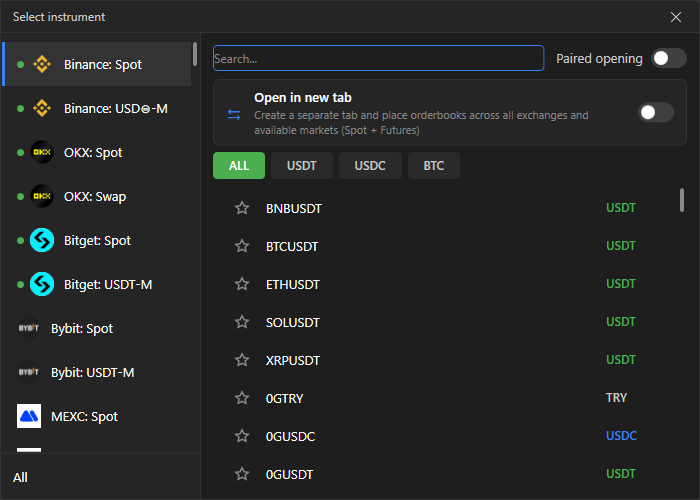
- In the “Select instrument” window pick the exchange and market on the left, filter by quote currency at the top, for example USDT, find the instrument via search and click it.
- A tab opens with the order book, tick tape and a chart below the order book. The chart position is changed in Settings → Workspace.
5. Set up the order book
Section titled “5. Set up the order book”Depth, auto-centering, font and volume highlighting are set in Settings → Order book. Working volumes for keys 1–5 are in Settings → Presets. Before trading, check the buy, sell and close-position keys in Settings → Hotkeys.
6. Make your first trade
Section titled “6. Make your first trade”Pick a volume with keys 1–5 and click a price in the order book: left button buys, right button sells. The order appears as a badge on the price, the position in the “Positions” panel. How to make your first trade, Take Profit / Stop Loss.
The terminal trades real money. Use the minimum volume for your first steps. Binance has a demo mode on its test network: Binance.