
Gate
How to connect a Gate account to SmartDOM with an API key and what the terminal can do with this connection.
What the connection gives you
Section titled “What the connection gives you”Once connected, SmartDOM shows the account’s balances and positions, keeps the list of orders and lets you trade from the order book. Without a connection the exchange is available for viewing quotes only.
| Parameter | Value |
|---|---|
| Markets for trading | Spot and Futures (USDT-perpetual) |
| Passphrase when connecting | Not required |
| Demo trading (testnet) | No |
Where it is in SmartDOM
Section titled “Where it is in SmartDOM”Settings → Connection → “+ Add connection”.
Step by step
Section titled “Step by step”- Create an API key in your Gate account. Which permissions to enable: Creating API keys and required permissions. The key must have trading permission, not “read only”: a read-only key passes verification, but orders will not be placed.
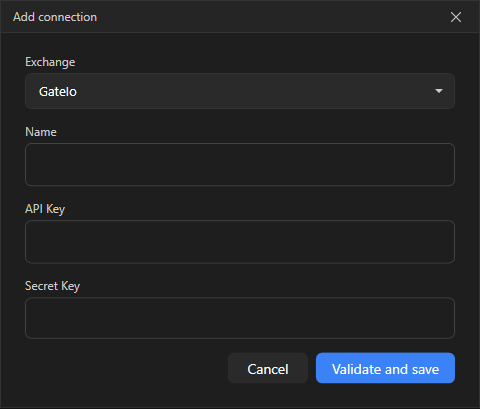
- In SmartDOM open Settings → Connection and click + Add connection.
- In the Exchange field select Gate.
- In the Name field enter any clear name, for example “Gate main”. It is used to tell connections apart.
- Paste the API Key and Secret Key.
- Click Verify and save. The terminal contacts the exchange and makes sure the keys work. While checking, “Verifying keys…” is shown.
- The new connection appears in the list with the status Disconnected. Click Connect to start trading.
- During verification the terminal contacts the spot and futures accounts in turn. It is enough for the key to work on at least one market: the connection is saved and the card shows which markets passed.
- If the Gate futures wallet has not been created yet (no funds were ever transferred to the futures account), the key passes verification, but an attempt to trade futures shows “The Gate futures wallet has not been created yet. Transfer funds to the futures account on the exchange website”.
- The terminal works with the classic Gate account mode. The Unified Account is not supported.
- The futures position mode must be One-Way. If hedge (dual) mode is enabled on the account, the order is not sent and the message “Your Gate account is in hedge (dual) position mode…” appears. The terminal does not switch the mode itself: switch it on the exchange website after closing positions and cancelling orders.
- Futures volume on Gate is measured in contracts. The terminal converts coins into a whole number of contracts, rounding down. If the selected volume is below one contract, the order is not sent and “Selected volume too small for this instrument” is shown.
- Take Profit and Stop Loss on futures are placed as a stop for the whole position and trigger by mark price; pending orders trigger by the last price. On spot, conditional orders are placed with a fixed volume and live for 30 days, after which the exchange removes them.
Common errors
Section titled “Common errors”- “Invalid API keys”: the key was copied incompletely, deleted on the exchange, created for another account or bound to another IP address. Gate returns one generic error for all these cases, so check both the key itself and the IP restriction on the exchange.
- “Local clock is out of sync with the exchange (>30 s)”: enable automatic time synchronisation in Windows.
- “Gate API keys are not configured or invalid” when placing an order, although the connection passed verification: the key is read-only, without trading permission, or was deleted on the exchange. Create a new key and change the connection with the Edit button.
The full list of messages and what to do about them: Common connection errors.