
Order book
The Order book tab: order book display, common settings of order book panels, off-screen densities and both rulers.
Where it is in SmartDOM
Section titled “Where it is in SmartDOM”Settings → Order book. The ? icon in the top right corner of the tab opens this article.
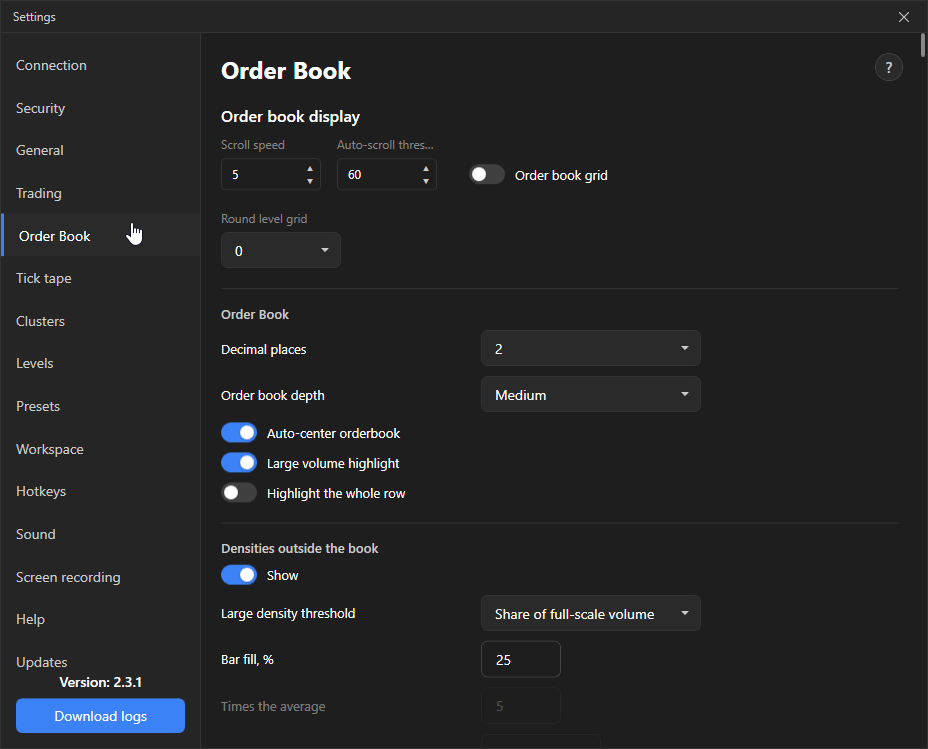
The “Order book” and “Off-screen densities” blocks are common panel settings. They act as defaults: a panel where the parameter is not set in its own gear follows them. The Apply to all button erases personal values on all panels in all windows and switches them to the common ones. The action is irreversible; the terminal asks for confirmation.
Order book display
Section titled “Order book display”| Setting | What it does | Default |
|---|---|---|
| Scroll speed | How many rows scroll per mouse wheel click, 1–20. | 5 |
| Auto-scroll threshold, % | How far, as a percentage of the way from the center to the edge, the spread must move for the order book to re-center. 100%: the spread reaches the edge. Higher value, the order book jumps less often. | 60 |
| Grid in the order book | Thin lines between cells. Turn off for a more seamless look. | On |
| Round level grid | Highlights round price levels with a step of 10, 100 or 1000. 0 turns it off. | 0 |
Order book (common panel settings)
Section titled “Order book (common panel settings)”| Setting | What it does | Default |
|---|---|---|
| Decimal places | Volume format: Auto (with K/M/B suffixes) or 0–4 digits. | Auto |
| Order book depth | Max, Medium or Minimal. Limits how many levels are requested and drawn. | Max |
| Order book auto-centering | Return the spread to the center when it moves beyond the auto-scroll threshold. | On |
| Large volume highlighting | Highlight levels with large orders. | On |
| Highlight the whole row | Highlight the entire row, not just the volume cell. | Off |
Off-screen densities
Section titled “Off-screen densities”Large densities outside the visible part are shown as markers: above for those higher, below for those lower. Clicking a marker scrolls the order book to the level.
| Setting | What it does | Default |
|---|---|---|
| Show | Enables the markers. | On |
| Large density threshold | How to define “large”: share of the full-scale volume, times the average, or absolute size in dollars. | Share of full-scale volume |
| Bar fill, % | For the “share” mode: a density is large if its bar is filled to at least this percentage of the order book scale. | 25 |
| Times the average | For the “average” mode: the average is taken over non-empty levels of the visible part. | 5 |
| Density size, $ | For the “absolute” mode: the threshold is always in dollars. | 0 |
| How many to show (1–10) | Maximum markers per side. | 3 |
| Scan depth, ±% | 0: the whole available order book. Above zero: search only within ±X% of the price. | 0 |
| Show price / distance | What to put in the marker besides the size. The shorter the label, the more markers fit. | Both on |
| Distance units | Percent, price steps or absolute price. | Percent |
Measuring and hover ruler
Section titled “Measuring and hover ruler”The measuring ruler is enabled with the R key and shows data between two prices. The hover ruler shows data between the spread and the price under the cursor. For each you choose what to display:
| Setting | What it does | Default |
|---|---|---|
| Ticks | Distance in price steps. | Measuring: on, Hover: off |
| Price change percent | Distance in percent. | On / On |
| PnL | Distance multiplied by the volume at the reference price. A dash if there is no volume. | Off / Off |
| Volume sum in the zone | Total volume of the order book rows in the range. Units are those chosen with the $ button in the order book. | Off / Off |