Main window and workspace
The SmartDOM main window is a top bar with buttons and a workspace of tabs and panels that you arrange for yourself.
Top bar
Section titled “Top bar”| Element | What it does |
|---|---|
| Windows | Menu: Tab, Workspace, History, Orders, Positions, Listings, Impulses, Flip screener, Trader’s diary. |
| PnL | The “Financial result” panel: balances, fees, change over the session. |
| Screener | Quotes screener: a table of instruments of the selected exchanges with filters. |
| Settings | The terminal settings window. |
| Connection | Opens the connection settings. The dot on the left is green if there are active exchange keys, grey if not. To the right, icons of the connected exchanges. |
| Rec | Screen recording: start, pause, stop. Settings in Settings → Screen recording. |
| Clock | Current time. |
| Theme | Switch between the light and dark theme. |
In Binance demo mode a banner “DEMO MODE — Binance testnet. Virtual funds” is shown above the workspace.

Each instrument opens in its own tab. Tabs are combined into groups, the Tab key switches between tabs. A tab shows the number of active orders and a mark of an open position.
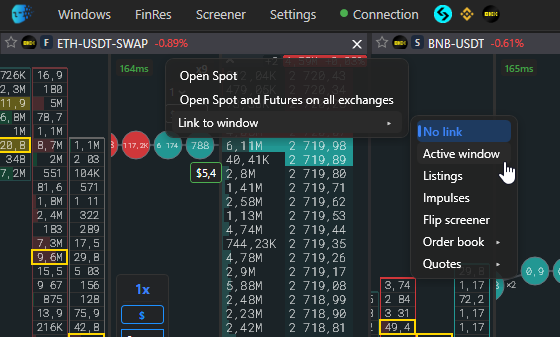
A right click on a tab opens a menu:
- Rename, Change exchange / market, Open Spot or Open Futures for the same symbol.
- Open on all exchanges in a new tab or a new workspace: order books of this symbol on all connected exchanges and markets.
- Detach: the tab moves to a separate window with its own order book, tape and chart.
- Close, Close all but this, Close all. Before closing the terminal asks for confirmation, disabled in Settings → Workspace.
- Link to window: see below.
Panels and windows
Section titled “Panels and windows”- The order book, chart, tables and screeners are panels. They can be dragged by the header and docked to any edge, side by side or as tabs of each other.
- The Workspace button in the “Windows” menu opens an additional window with its own set of tabs, for example for a second monitor.
- The F8 key opens a chart for the instrument under the cursor. Automatic opening of the chart with the order book and its position, below or above the order book, are set in Settings → Workspace.
- The layout of windows, tabs and panels is saved and restored on the next launch.

Selecting an instrument
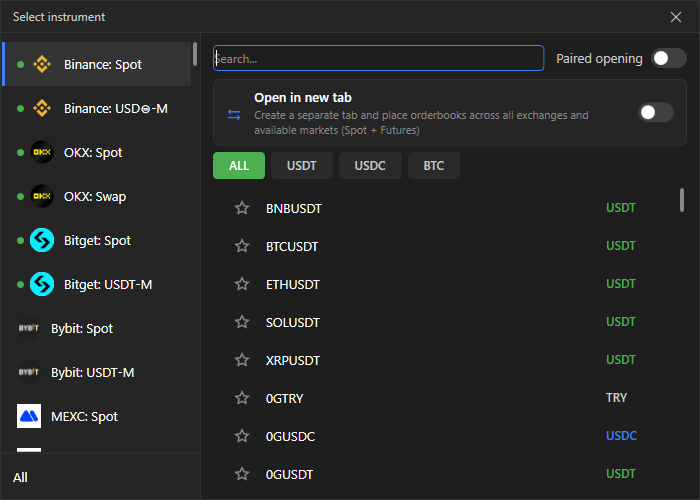
Section titled “Selecting an instrument”The “Order book” button on the bar or “Tab” in the “Windows” menu opens the “Select instrument” window. On the left is the list of exchanges and markets, at the top the quote currency filter buttons, for example USDT, and the search field. A click on an instrument opens it. Additionally:
- Pair open: Spot and Futures of one symbol at the same time.
- All exchanges: a new tab with the instrument’s order books on all connected exchanges and available markets.
Linking panels
Section titled “Linking panels”An order book, chart or empty tab can be linked to a source, and then, when an instrument is selected in the source, the panel switches to it. Sources: the active screener, a specific “Quotes” tab, the order book of its own group, the “Listings” panel (main window only), “Impulses”, “Flip screener”. Linking is set up in the tab menu, item “Link to window”; the “No link” item unlinks. The screener has its own link button: press it, then click the window you want.